Have you ever been in the middle of an intense gaming session when your character suddenly drifts to one side, or you press the 'A' button and nothing registers? Every gamer has experienced this frustrating moment. When an input problem strikes, it is difficult to determine whether the fault lies within the game settings, Bluetooth connection, or the controller's internal hardware. That is where an online Xbox Gamepad Tester becomes essential — a fast, browser-based diagnostic utility that verifies every button, trigger, and thumbstick within seconds.
In this guide, we will walk you through how an Xbox gamepad tester works, step-by-step instructions for testing Xbox Series X|S, Xbox One, and Xbox 360 controllers, and how to troubleshoot common hardware problems before spending money on replacements.
Ready to test right now? Launch our primary Gamepad Tester to check all buttons, analog thumbsticks, triggers, and vibration motors online in real time.
What is an Xbox Gamepad Tester?
An Xbox Gamepad Tester is a web-based diagnostic tool that reads hardware signals sent from your controller and renders them live on your screen. Whenever you press a button, tilt an analog joystick, or pull a trigger, the tool immediately visualizes that input with zero latency.
This utility relies on the native HTML5 Gamepad API embedded directly into modern web browsers such as Google Chrome, Microsoft Edge, Mozilla Firefox, and Safari. Because the API operates locally inside the browser, you do not need to download third-party software, install suspicious drivers, or register an account. Simply plug in your controller or connect via Bluetooth, and start testing right away.
Best of all, our tester is tailored specifically for the standard Xbox layout. The on-screen interface maps precisely to A/B/X/Y face buttons, LB/RB bumpers, LT/RT analog triggers, Menu/View buttons, and clickable thumbsticks (L3/R3), making it effortless to pinpoint faulty inputs.
How to Test Your Xbox Series X|S and Xbox One Controller Online
Testing an Xbox One or Xbox Series X|S controller takes less than a minute. Follow these steps for an accurate diagnostic:
- Connect to your PC or Device: Connect your controller using a USB-C (or Micro-USB for older Xbox One models) data cable, or pair it via Bluetooth in your system settings.
- Activate the Controller: Press the Xbox Guide button or any face button. Browsers require at least one button press to establish a secure Gamepad API handshake.
- Verify Buttons & Bumpers: Press A, B, X, Y, LB, RB, and the D-pad directions. Each corresponding button on screen should illuminate immediately.
- Inspect Analog Sticks for Drift: Rotate both left and right joysticks through a complete circle and let go. The axis indicator should return cleanly to (0.00, 0.00). If the indicator keeps jittering or stays off-center, your controller is suffering from stick drift.
- Evaluate Trigger Sensitivity (LT & RT): Squeeze both triggers slowly. You should see smooth analog values rising progressively from 0.00 to 1.00 (0% to 100%).
Noticed erratic thumbstick movement? Use our dedicated Stick Drift Tester to measure exact deadzones, circularity error percentages, and drift severity.
How to Test Your Xbox 360 Controller Online
Many gamers still enjoy retro gaming, emulation, and PC titles with classic Xbox 360 controllers. Fortunately, the standard Gamepad API fully supports Xbox 360 wired controllers and wireless models paired via the official Xbox 360 Wireless Gaming Receiver for Windows.
Because Xbox 360 controllers are older hardware, they are particularly prone to potentiometer oxidation, worn rubber thumbstick caps, and stiff bumper microswitches. Testing them regularly confirms whether the thumbsticks center properly or if calibration adjustments are needed inside your emulator or Windows Game Controller settings (joy.cpl).
If you play predominantly on a computer, our comprehensive Gamepad Tester PC Guide provides step-by-step instructions for configuring XInput and DirectInput gamepads across Windows 10 and 11.
Common Xbox Controller Problems This Tool Detects
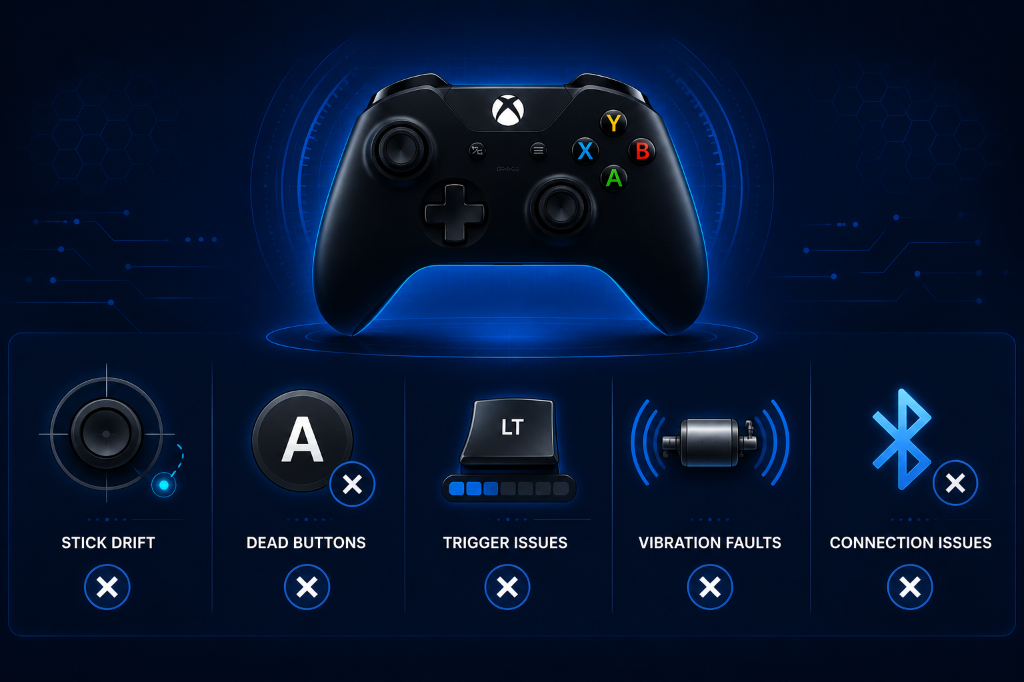
Running an online diagnostic quickly exposes several common Xbox controller failure points:
- Thumbstick Drift: Unintended movement caused by debris or worn potentiometer resistive tracks inside the joystick module.
- Unresponsive Bumper Switches: The tactile microswitches beneath LB and RB often lose contact after repetitive clicks or drops.
- Partial Trigger Squeeze: Deteriorated trigger dampeners can prevent the Hall effect sensor or potentiometer from reaching 100% full pull.
- Sticky Face Buttons: Dirt, sweat, and residue build-up around A/B/X/Y causing delayed button bounce-back.
- Dual Rumble Motor Desynchronization: Faulty haptic motors or broken wiring causing unbalanced or absent vibration feedback.
Step-by-Step Guide to Run the Complete Xbox Test
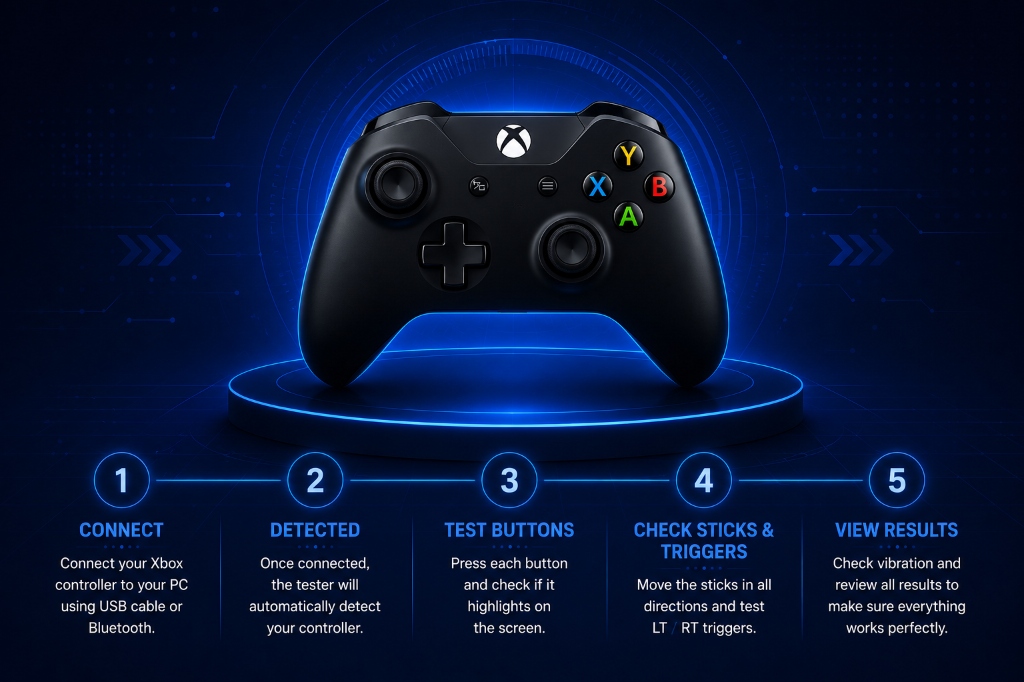
- Plug In Your Controller: Connect via USB or pair via Bluetooth to your desktop, laptop, Chromebook, or Android device.
- Press Any Button to Wake API: Click the guide button or 'A' button so the browser receives the input event.
- Systematic Button Check: Press every button systematically from D-pad to shoulder bumpers and check for instant illumination.
- Full Stick Rotation: Move both sticks slowly around their perimeter to verify smooth 360-degree tracking and circularity.
- Trigger Range Verification: Test LT and RT to confirm smooth modulation from zero to maximum input.
- Activate Vibration Motors: Run a rumble check to ensure both heavy low-frequency and light high-frequency motors respond.
Want to check dual rumble motors independently? Try our dedicated Vibration Test Tool to test force feedback intensity across both grip motors.
Why Use Our Free Online Xbox Gamepad Tester?
- No Software or Driver Installation: Functions 100% in your browser without bloatware or third-party executable risks.
- Cross-Generation Compatibility: Fully supports Xbox Series X|S, Xbox Elite Series 1 & 2, Xbox One, and Xbox 360 controllers.
- Privacy & Security First: Hardware input data is processed strictly client-side on your local machine; nothing is recorded or transmitted.
- Real-Time Low Latency Readouts: Reads raw Gamepad API packets at the maximum browser polling rate for pinpoint diagnostic accuracy.
- 100% Free Forever: No paywalls, no trial periods, and no account signup required.
Frequently Asked Questions (FAQ)
Can I test an Xbox controller wirelessly over Bluetooth?
Yes! Once your Xbox Wireless Controller is paired with your PC, laptop, or mobile device, open the tester and press any button. The browser will detect the controller and register inputs just like a wired connection.
Why is my Xbox controller not detected by the browser?
Web browsers will not connect to a controller until a button is pressed after opening the page. If it still does not appear, try unplugging and reconnecting the USB cable, testing a different USB port, or restarting your browser. Also ensure no other software (like Steam or an emulator) has exclusively locked the controller.
How do I fix stick drift if detected on my Xbox controller?
For minor drift, increasing the in-game deadzone or using the Xbox Accessories app on Windows/Xbox to adjust response curves can help. For persistent drift caused by debris, cleaning the joystick mechanism with compressed air or electrical contact cleaner often solves the issue. If hardware wear is severe, replacing the potentiometer module is recommended.
Can I also test PlayStation or third-party controllers?
Absolutely. Our tool supports all standard gamepads. If you also own PlayStation controllers, check out our specialized PS4 Gamepad Tester and PS3 Controller Guide.
Final Thoughts
Your controller is your direct interface with the gaming world. When inputs lag, stick drift develops, or buttons miss, your in-game performance suffers. Regularly running your Xbox One, Series X|S, or Xbox 360 controller through an online gamepad diagnostic helps you catch emerging issues early, calibrate deadzones accurately, and keep your gaming gear in championship condition.
Ready to verify your hardware? Plug in your controller and test your buttons, triggers, and thumbsticks right now on our free Gamepad Tester Online.