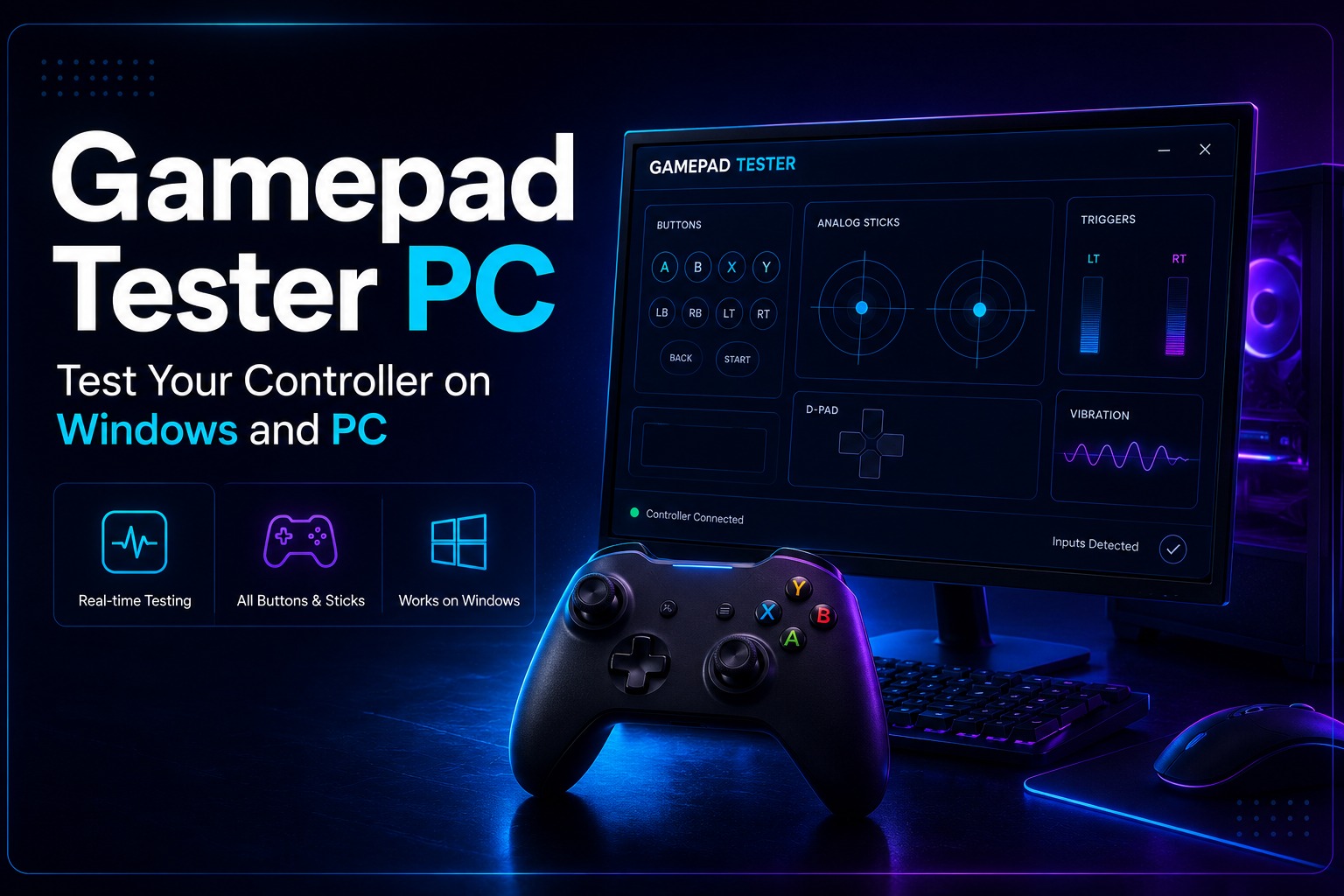
A controller that works perfectly on a console may not work the same way on a PC. Sometimes Windows fails to recognize the device, buttons respond incorrectly or the controller connects but does not work inside games.
Before changing settings, updating drivers, or reinstalling software, it is worth checking whether the PC is receiving controller inputs correctly. A quick test can reveal connection issues, mapping problems and hardware faults within seconds.
This guide covers how to test a controller on a Windows PC, check input response, troubleshoot common problems, and verify that everything is working properly before gaming.
PC Controller Detection and Compatibility
Before running a test make sure the controller is detected by Windows. If the system cannot recognize the device the tester will not be able to read any inputs.
Most Xbox controllers work with Windows automatically. PlayStation and third-party controllers may require additional setup depending on the model and connection method.
For the best results connect the controller first to confirm that Windows detects it and then start testing.
How to Test a Gamepad on PC
Testing a controller on a PC takes only a few minutes. A complete test can confirm that buttons, triggers, sticks and other inputs are responding correctly before you start gaming.
Connect Your Controller to the PC
Connect the controller through USB or Bluetooth and wait for Windows to finish detecting the device. If nothing happens after connection try a different USB port or reconnect the controller.
Open the Gamepad Tester
Open the testing tool and check whether the controller appears on the screen. If the device is detected you can begin testing immediately.
Check Buttons Triggers and Sticks
Press every button one by one and confirm that each input responds correctly. Move both analog sticks through their full range and test the triggers from minimum to maximum pressure.
Pay attention to inputs that fail to register respond late or behave unexpectedly.
Review the Test Results
A successful test should show accurate button presses smooth stick movement and proper trigger response. Missing inputs incorrect mappings or unexpected movement usually indicate a setup issue or hardware fault that requires attention.
Features of a PC Gamepad Tester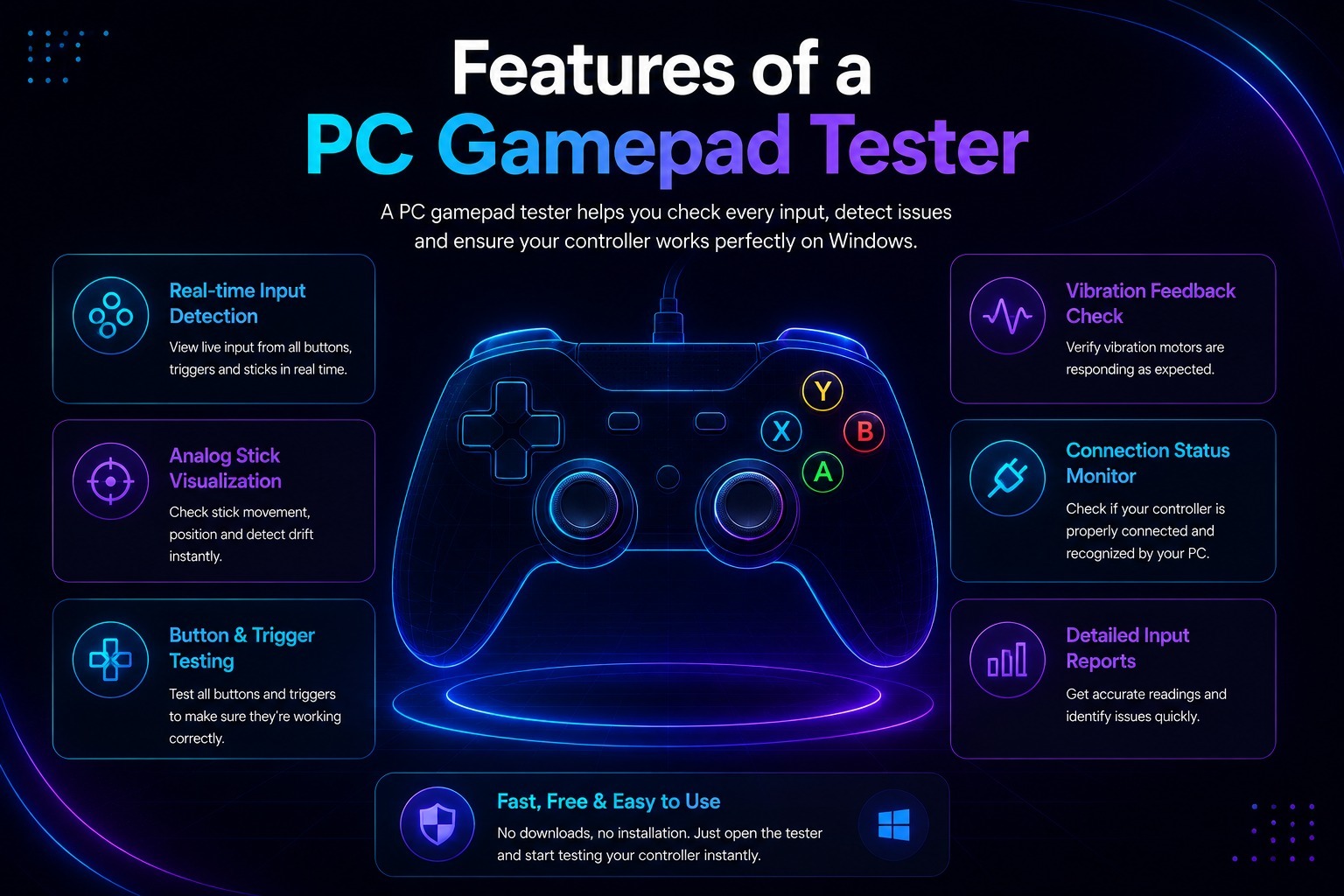
A PC gamepad tester provides instant feedback making it easier to check whether a controller is working correctly before launching a game.
Real-Time Input Detection
Every button press triggers action and stick movement appears on the screen as it happens. This makes it easier to spot inputs that are missing or responding incorrectly.
Button and Trigger Testing
Buttons and triggers can be checked individually to confirm that each input registers correctly. This is useful when certain actions fail to work inside games.
Analog Stick Testing
Stick movement is displayed in real time making it easier to identify inaccurate movement restricted range or unwanted input.
Vibration Testing
Controllers that support vibration can be checked to confirm that rumble functions are working correctly after connection or setup changes.
USB Gamepad Tester on PC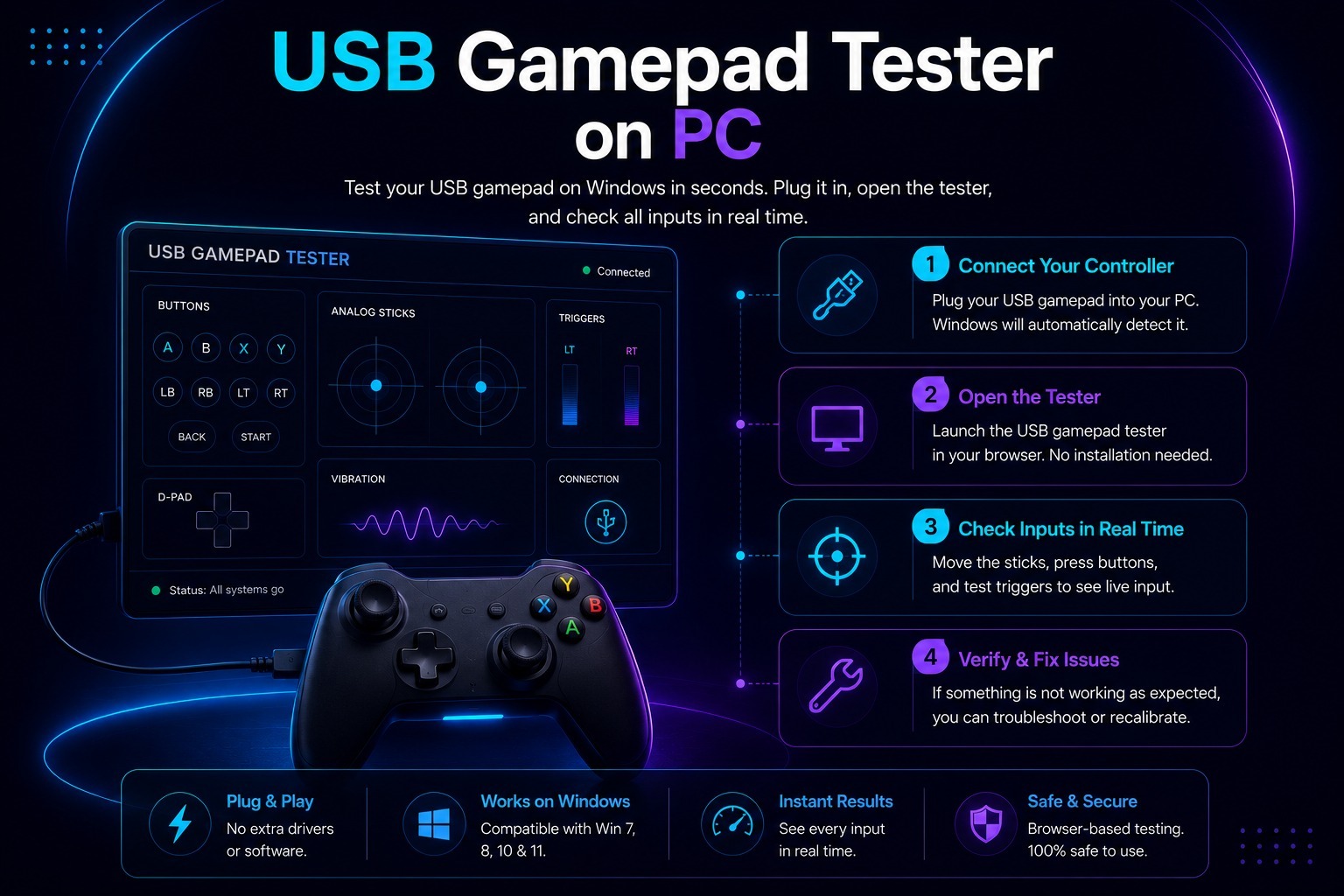
USB controllers remain one of the most common choices for PC gaming because they offer a stable connection and require very little setup.
After connecting a USB controller the tester can immediately show whether Windows is receiving inputs correctly. This makes it easier to confirm that buttons triggers and analog sticks are functioning as expected.
A USB gamepad test is also useful when a controller connects but fails to work inside a game. In many cases the issue is related to drivers, controller settings, or game configuration rather than the controller itself.
When testing a USB controller check that every input registers correctly and that no buttons respond unexpectedly. Even a quick test can reveal problems that may otherwise be difficult to identify.
Supported PC Controllers
Most controllers that are recognized by Windows can be tested on a PC. Support depends more on system compatibility than the controller brand itself.
Xbox Controllers
Xbox controllers offer the best native support on Windows and are usually detected without additional configuration.
PlayStation Controllers
PlayStation controllers can be connected through USB or Bluetooth. Once detected by the system, their inputs can be tested the same way as any other controller.
Generic USB Controllers
Many third-party USB gamepads work on PCs and are commonly used for casual gaming, retro gaming and emulators. Testing helps confirm that buttons and sticks are mapped correctly.
Bluetooth Controllers
Bluetooth controllers can also be tested after pairing successfully with the computer. A stable connection is important for accurate input detection and smooth performance.
Common PC Controller Problems
Controller issues on a PC are often caused by system settings, connection problems, or driver conflicts. A quick test can help identify where the problem starts.
Controller Not Detected
If the controller does not appear in the tester Windows may not be recognizing the device. Reconnecting the controller or trying another USB port often resolves the issue.
Driver Issues
Missing or outdated drivers can prevent a controller from working properly. This is more common with older controllers and some third-party devices.
Connection Problems
Unstable Bluetooth connections damaged cables or low battery levels can interrupt controller inputs and cause unexpected behavior during use.
Incorrect Button Mapping
Buttons may perform the wrong actions when controller settings are configured incorrectly. Testing inputs makes it easier to spot mapping problems before starting a game.
Why Test a Controller on PC?
A controller may connect successfully to a PC but still fail to work properly in games. Testing before gaming can reveal input issues, mapping problems or setup errors that are not immediately noticeable.
A quick test is especially useful after connecting a new controller, changing settings, updating drivers or setting up an emulator. Finding the problem early is often easier than troubleshooting it during gameplay.
Frequently Asked Questions
Does Gamepad Tester Work on Windows?
Yes most gamepad testers work on Windows and support controllers connected through USB or Bluetooth.
Can I Test a Wireless Controller on PC?
Yes, wireless controllers can be tested after they are paired successfully with the computer.
Why Is My Controller Not Detected?
This is usually caused by connection issues, outdated drivers or unsupported hardware.
Can I Test a USB Gamepad on PC?
Yes, USB gamepads can be tested directly after they are connected and recognized by Windows.
Is Gamepad Tester for PC Free to Use?
Most browser-based gamepad testers are free and do not require software installation.
Final Thoughts
Testing a controller on a PC takes only a few moments and can quickly reveal connection, mapping or input issues. Whether you use a USB gamepad, a wireless controller or a console controller on Windows a quick test helps confirm that everything is working correctly before you start playing.
Meta description: Use a Gamepad Tester for PC to check controller inputs, button mapping, trigger response and USB gamepad performance on Windows.