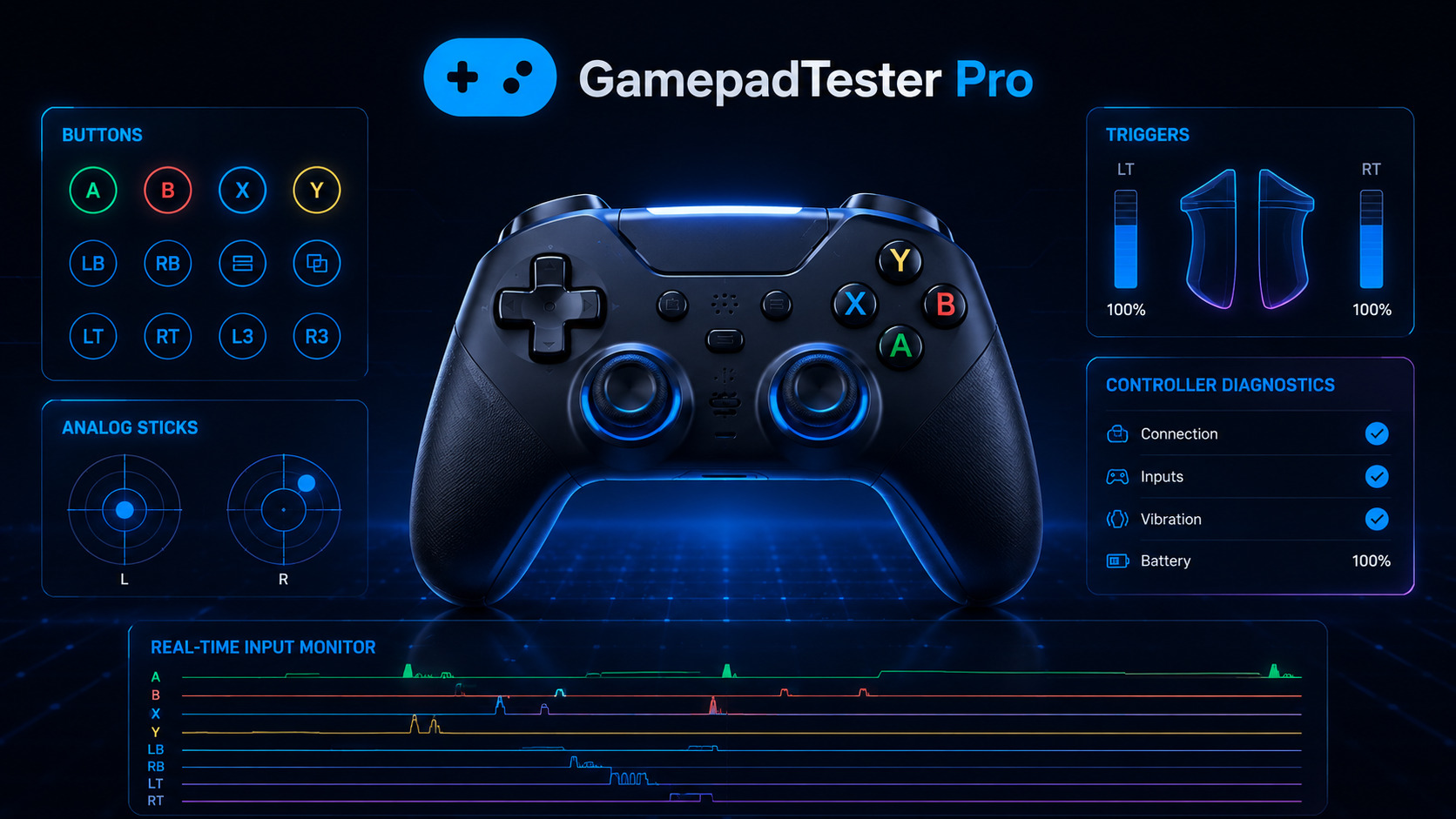
A gamepad tester is a simple way to check whether your controller is working properly. You can connect your gamepad to your computer and test its buttons, analog sticks, triggers, D-pad, and other inputs directly in your browser. This can help you find problems before they affect your gaming experience.
A controller may look fine from the outside but still have input problems. A button may not respond every time. An analog stick may move the character without being touched. A trigger may not register its full movement. These problems can be difficult to identify while playing a normal game because you may not know whether the issue is with the controller or the game itself.
With an online gamepad tester you can check individual controller inputs and see how they respond in real time. This makes it easier to identify common issues such as unresponsive buttons, stick drift, unusual stick movement, deadzone problems or missing inputs.
In this guide you will learn how to test a gamepad online and what to look for during each test. You will also learn when a controller should be tested and what you can do if your gamepad is not detected by the browser.
If you want to test your controller directly you can use our Gamepad Tester to check its inputs online.
How to Test a Gamepad Online
Testing a gamepad online is a quick way to check each controller input separately. Instead of relying on a game to show whether something is wrong you can check the buttons, D-pad, sticks, triggers and vibration directly through the tester. This makes it easier to notice an input that is not responding as expected.
Connect Your Controller
Start by connecting your gamepad to your computer with a USB cable or through Bluetooth if the controller supports it. Open the Gamepad Tester and allow the browser to access the connected controller when prompted.
Test Buttons and D-Pad
Press each button one by one and watch the tester for a response. Every button should register when you press it and return to its normal state when you release it. Test the D-pad in every direction to make sure each input is detected correctly.
Test Analog Sticks and Triggers
Move the left and right analog sticks slowly in different directions. The input should follow your movement smoothly without jumping or moving when the stick is untouched. Pull each trigger through its full range and check that the tester responds as you move it.
Check Vibration and Rumble
If your controller supports vibration, run the vibration test to check whether the rumble motors respond properly. If there is no vibration the feature may not be supported by the browser or controller connection.
What Does a Gamepad Tester Check?
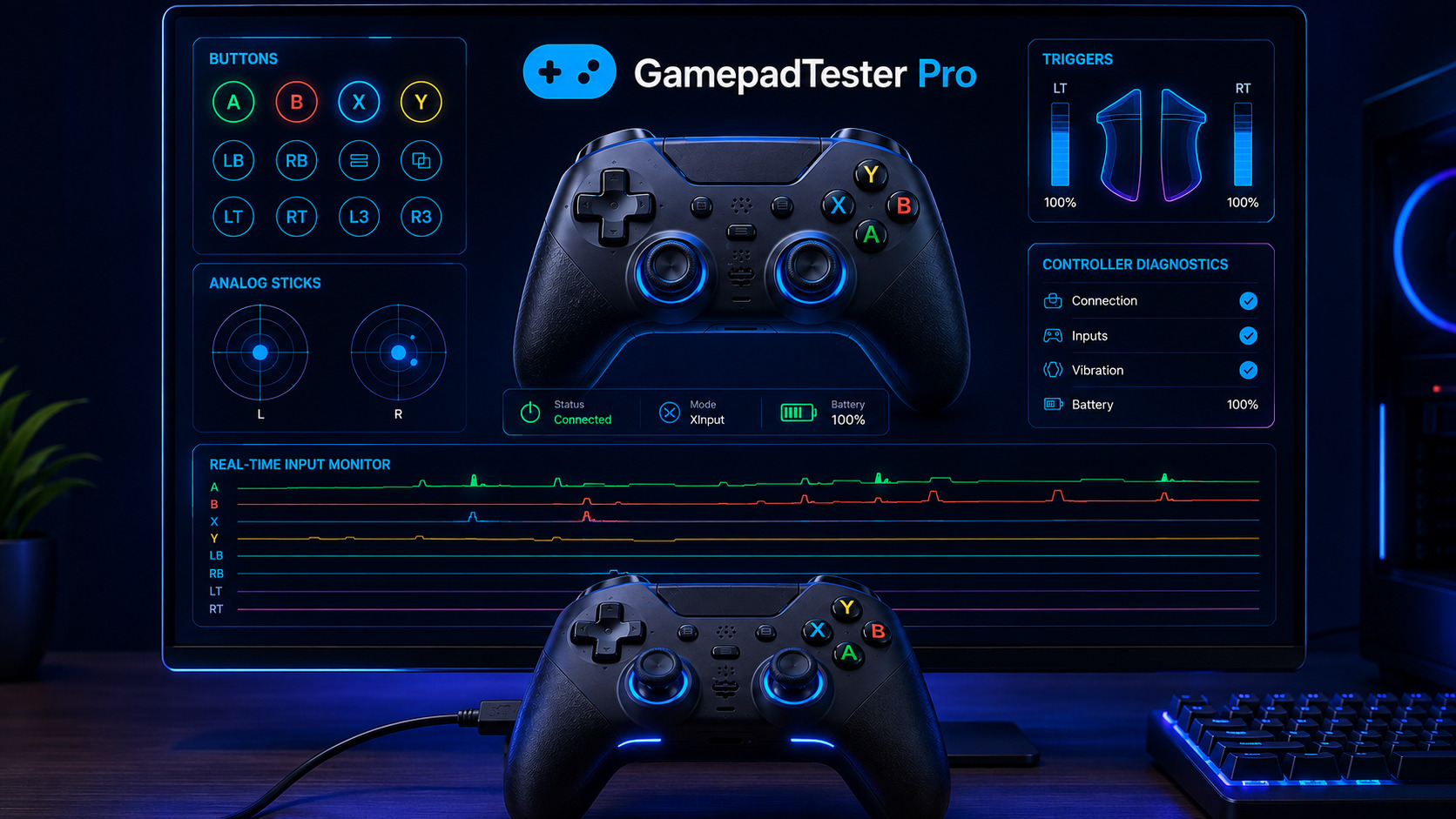
A gamepad tester gives you a closer look at how different parts of your controller respond to your inputs. Each test focuses on a specific part of the gamepad so you can notice unusual behavior more easily. This is especially useful when a controller seems to work but one of its inputs does not respond correctly.
Button Response
A button test shows whether each controller button registers your press correctly. Press every button several times and check that the input appears each time. A button that only works sometimes may indicate a hardware problem.
Stick Movement and Drift
The stick test shows how your analog sticks respond as you move them. A healthy stick should follow your movement smoothly and stay near the center when released. Movement that appears without touching the stick can be a sign of stick drift.
Deadzone
Deadzone refers to the small area around the center of an analog stick where minor movements may not register. A suitable deadzone helps prevent unwanted movement while still allowing precise control. Unusual deadzone behavior can make a stick feel less accurate.
Trigger Response
Trigger testing checks how the controller responds as you press the left and right triggers. The input should change smoothly as the trigger moves through its range. This can help identify a trigger that does not register properly or fails to reach its full input range.
Vibration and Rumble
A vibration test checks whether the controller can produce its rumble response. If the vibration does not work, the issue may be related to the controller itself or the connection being used.
How to Check Your Controller for Stick Drift
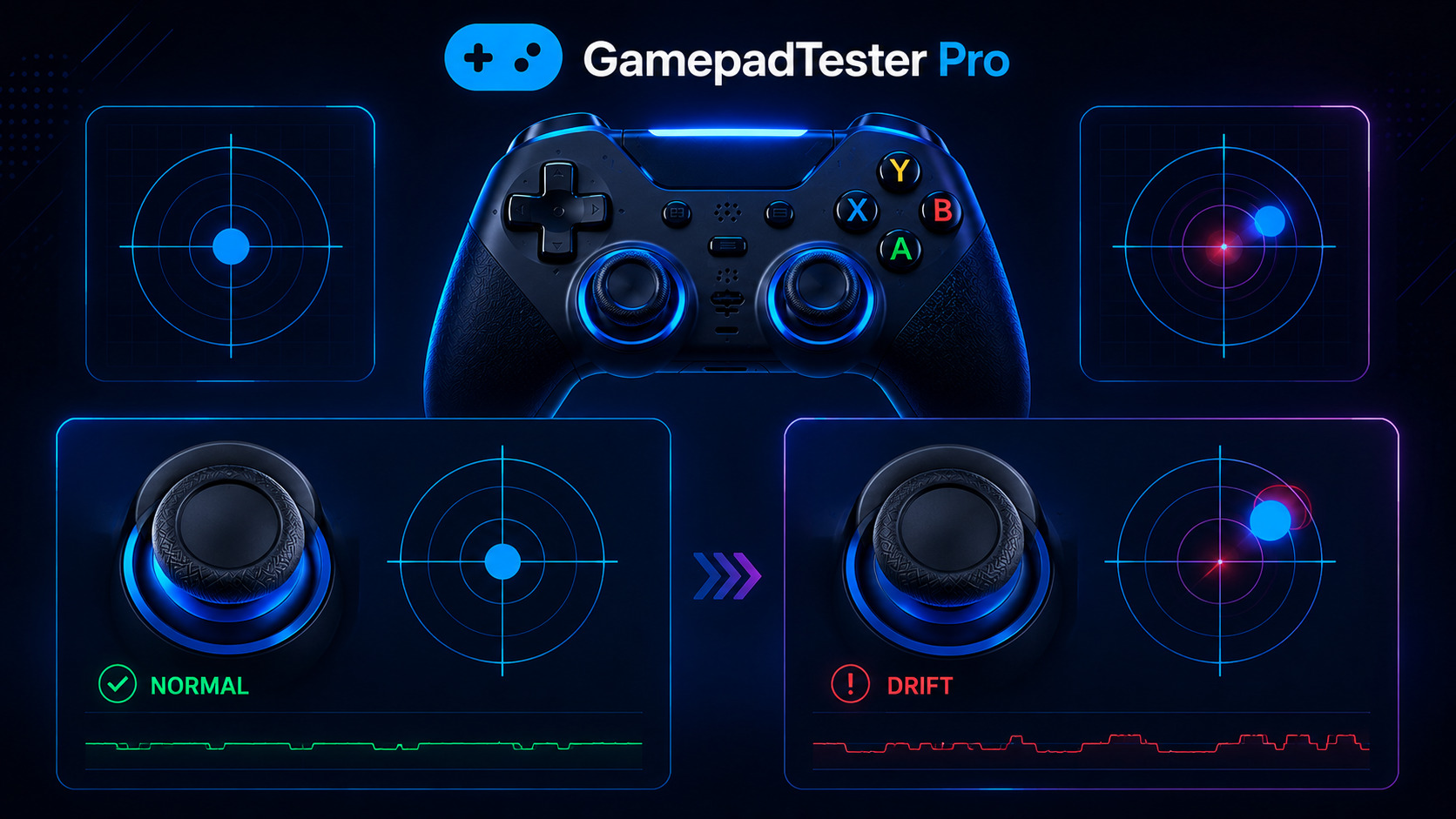
Stick drift happens when an analog stick sends movement input even when you are not touching it. Your character may move on its own or the camera may slowly turn without any input from you. An online tester can help you notice this problem by showing the stick position while it is at rest.
What Is Stick Drift?
A controller stick should normally return close to its center position when you release it. If the tester shows movement while your hand is away from the stick then the controller may drift.
How to Test for Stick Drift
Leave the analog stick untouched and watch its position for a few seconds. It should remain stable near the center. Repeat the same check with the other stick so you can compare both inputs.
Understanding Deadzone Results
The deadzone affects how much movement is ignored around the center of an analog stick. A small amount can help prevent minor unwanted input. A larger deadzone may hide slight drift but can also reduce how quickly the stick responds to small movements.
If you have a PS3 controller, our guide Gamepad Tester PS3 Test Your DualShock 3 & Sixaxis Online explains how to test it through your browser.
Which Controllers Can You Test?
Most modern gamepads can be tested through a browser when they are recognized by the device and supported by the browser. The exact inputs available can vary between controllers. You can use the tester to check the main controls and see how your particular gamepad responds.
PS5 and PS4 Controllers
PS5 DualSense and PS4 DualShock 4 controllers can be connected to a computer for browser-based testing. You can check their buttons, analog sticks, triggers, D-pad, and other inputs supported by the connection.
Xbox Controllers
Xbox One and Xbox Series controllers can also be tested through a compatible USB or Bluetooth connection. The tester can help you check the main buttons, sticks, triggers, and D-pad for normal input response.
Nintendo Switch Controllers
Supported Nintendo Switch controllers can be connected to a compatible device and checked through the tester. You can test their buttons, sticks, triggers, and D-pad to find input problems.
PC and USB Gamepads
Many generic USB gamepads work with browser-based testing as long as the computer recognizes them as a game controller. This makes the tester useful for checking different PC controllers without installing separate testing software.
When Should You Test Your Controller?
You do not have to wait for a controller to stop working before checking it. Testing can be useful whenever you want to confirm that the gamepad is responding properly. It can also help you find a problem before it becomes noticeable during an important gaming session.
Checking a New Controller
Test a new controller soon after receiving it. This gives you a chance to find faulty buttons or other input problems while you can still contact the seller about the issue.
Buying a Used Controller
A quick test can help you check the condition of a used gamepad before buying it. Pay attention to the controls that are most likely to show wear after long-term use.
After Repair or Cleaning
Test the controller after repairing or cleaning it to make sure the affected controls are still working properly. This can help confirm whether the repair solved the original problem.
Diagnosing Controller Problems
Use a tester when a controller behaves differently from normal during gaming. Checking the inputs directly can help you narrow down whether the problem is related to a specific control.
For Windows users Gamepad Tester PC — Test Your Controller on Windows and PC shows you how to check your controller on a PC.
Gamepad Tester Not Detecting Your Controller?
Sometimes a connected controller may not appear in the tester even though it is plugged in or paired with the computer. The problem can come from the connection, browser, or another application using the controller. Try the following checks before assuming that the gamepad is faulty.
Check the USB or Bluetooth Connection
If you are using USB, make sure the cable is connected properly and try reconnecting it. For Bluetooth controllers, check that the gamepad is paired with the correct device and has enough battery.
Try Another USB Port or Browser
A different USB port can help if the current port is not recognizing the controller correctly. You can also open the tester in another supported browser to see whether the controller appears there.
Reconnect and Test Again
Disconnect the controller and connect it again before reopening the tester. If another game or controller application is using the device close it and then refresh the tester page.
Frequently Asked Questions
How do I test my gamepad online?
Connect your controller to your computer and open a browser-based gamepad tester. Once the controller is detected you can check its available inputs through the tester.
Can I test my controller without software?
Yes. A browser-based gamepad tester can check many common controller inputs without requiring a separate program to be installed on your computer.
How do I check controller buttons?
Open a gamepad tester and press each button while watching the input display. If a button does not register or responds inconsistently it may need further inspection.
How can I test for stick drift?
Leave the analog stick untouched and watch its position in the tester. Unwanted movement while the stick is at rest can indicate drift.
Why is my controller not detected?
The connection may not be recognized correctly or another application may be using the controller. Reconnecting the device and trying another supported browser can help identify the problem.
Can I test a PS5 or Xbox controller online?
Yes. Compatible PS5 and Xbox controllers can be tested through a browser when the computer and browser recognize the connected gamepad.
Final Thoughts
A gamepad tester is a useful way to check your controller before a problem affects your gaming. It can help you understand whether the controls are responding as expected and give you a clearer idea of where an issue may be coming from.
If your controller is showing unusual input then testing it early can save time and help you decide whether the problem needs further attention. For a quick check you can connect your gamepad and use the Gamepad Tester to see how it responds.
meta description: Test your controller online with a gamepad tester. Check buttons, sticks, triggers, vibration, deadzone and stick drift directly in your browser.