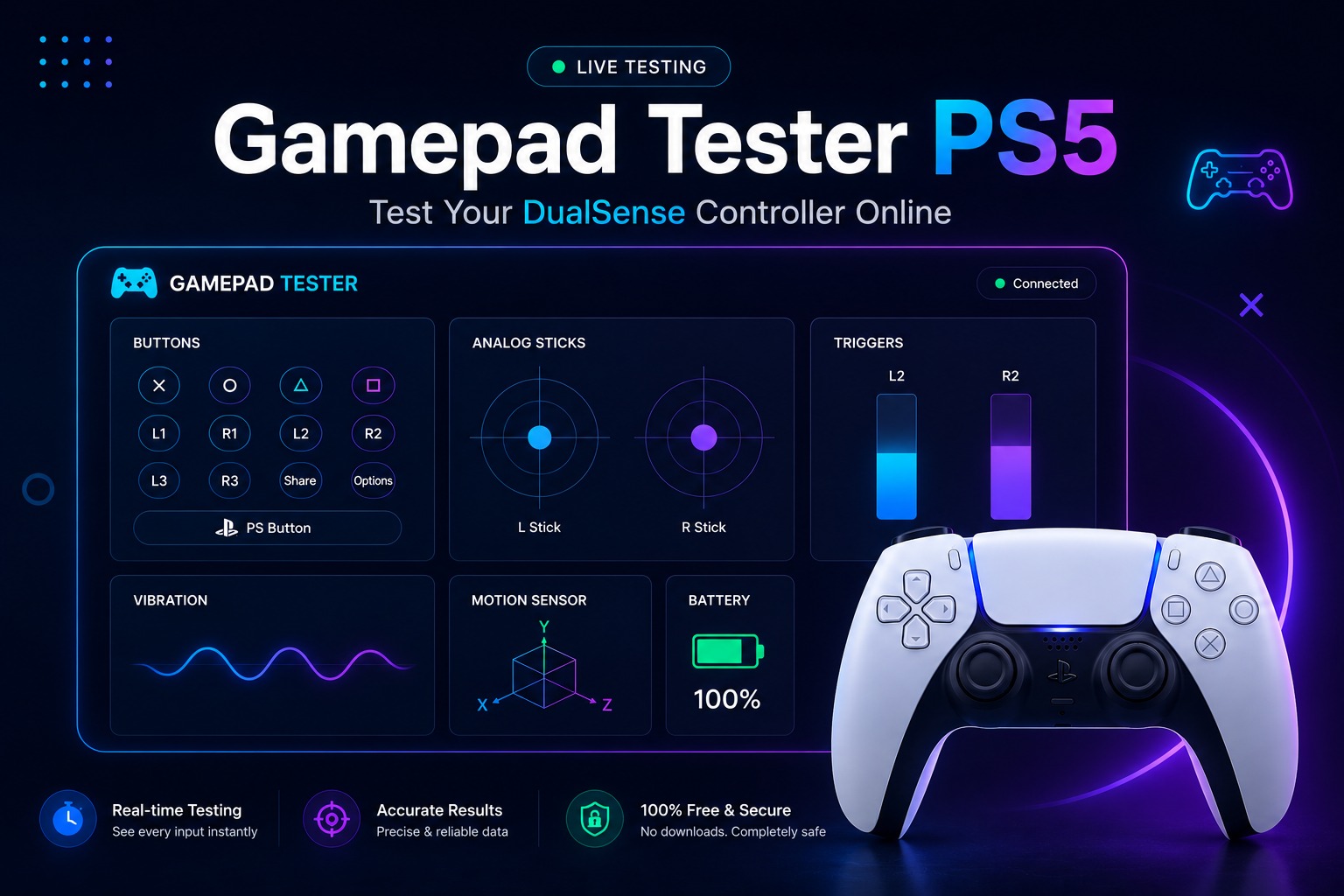
If your controller feels unresponsive, shows unexpected movement or some buttons are not working correctly testing it is the quickest way to find the problem. A gamepad tester online lets you check every button trigger and analog stick directly in your browser without downloading additional software.
Whether you use a PlayStation Xbox Nintendo Switch or PC controller this tool helps you verify inputs in real time and spot issues such as stick drift, inaccurate triggers or connection problems. In this guide you'll learn how to test your controller, understand the results and troubleshoot common issues that can affect gameplay.
Before learning how a gamepad tester works, you can visit our Gamepad Tester homepage to access all controller testing tools and explore everything you need to test your controller online.
What Is a Gamepad Tester?
A gamepad tester is a tool that checks whether your controller is working correctly. It shows the response of buttons triggers analog sticks and other inputs as you interact with your controller.
When you press a button or move a joystick the tester displays that action instantly on the screen. This makes it easy to identify issues such as unresponsive buttons, stick drift trigger sensitivity problems or connection errors without opening a game.
Most online gamepad testers work directly in your browser and support a wide range of controllers including PlayStation Xbox Nintendo Switch and generic PC gamepads. Instead of guessing whether a controller has a hardware issue you can quickly verify its condition and pinpoint the exact input that is causing problems.
How to Use Gamepad Tester Online
Testing a controller online is simple and usually takes less than a minute. Once your controller is connected you can check every input and confirm that all functions are responding correctly.
Connect Your Controller
Connect your controller to your device using a USB cable or Bluetooth connection. After the controller is connected, open the gamepad tester tool in your browser. Most modern browsers automatically detect supported controllers without requiring additional software.
Test Buttons and Triggers
Press each button one at a time and watch the tester display the input. Every button press should register immediately. Next test the triggers by pressing them gradually and checking whether the response changes smoothly from light to full pressure.
Check Analog Sticks
Move both analog sticks in different directions and observe the movement shown on the screen. The cursor or input indicator should follow your movements accurately. If the stick moves on its own or fails to reach certain positions your controller may have a stick drift or calibration issue.
Review the Results
After testing all inputs, review the results carefully. A healthy controller should respond consistently with no missing button presses, unexpected stick movement or trigger delays. If any issue appears during testing you can troubleshoot the affected component before using the controller in games.
Features of Gamepad Tester
A good gamepad tester does more than show button presses. It helps you check different parts of your controller and quickly identify inputs that are not working as expected.
|
Feature |
What It Checks |
|
Button Testing |
Confirms that every button responds correctly |
|
Analog Stick Testing |
Tracks stick movement and detects drift |
|
Trigger Testing |
Measures trigger response and sensitivity |
|
Vibration Testing |
Checks whether rumble features are working |
|
Real-Time Input Detection |
Displays controller inputs instantly |
Button Testing
Button testing allows you to verify that every button on your controller is registering properly. When a button is pressed the tester highlights the corresponding input on the screen. This makes it easy to spot buttons that are delayed, stuck or completely unresponsive.
Analog Stick Testing
Analog sticks are one of the most frequently used parts of a controller, which is why they often develop problems over time. A gamepad tester shows the exact movement of each stick helping you identify inaccurate movement calibration issues or unwanted drift.
Trigger Testing
Modern controllers use pressure-sensitive triggers that respond differently depending on how far they are pressed. Trigger testing helps confirm that the input changes smoothly across the entire range instead of jumping between values or failing to respond.
Vibration Testing
Many controllers include vibration or rumble features that improve gameplay feedback. This test helps you confirm whether the vibration motors are functioning correctly and responding when activated.
Real-Time Input Detection
Real-time input detection displays every controller action the moment it happens. Whether you press a button, move a stick or pull a trigger the tester reflects the input instantly. This makes it easier to diagnose response issues and verify that your controller is working correctly.
If your controller's analog stick moves on its own, try our Stick Drift Tester to quickly detect drift and check the accuracy of your joystick.
Stick Drift Deadzone and Calibration
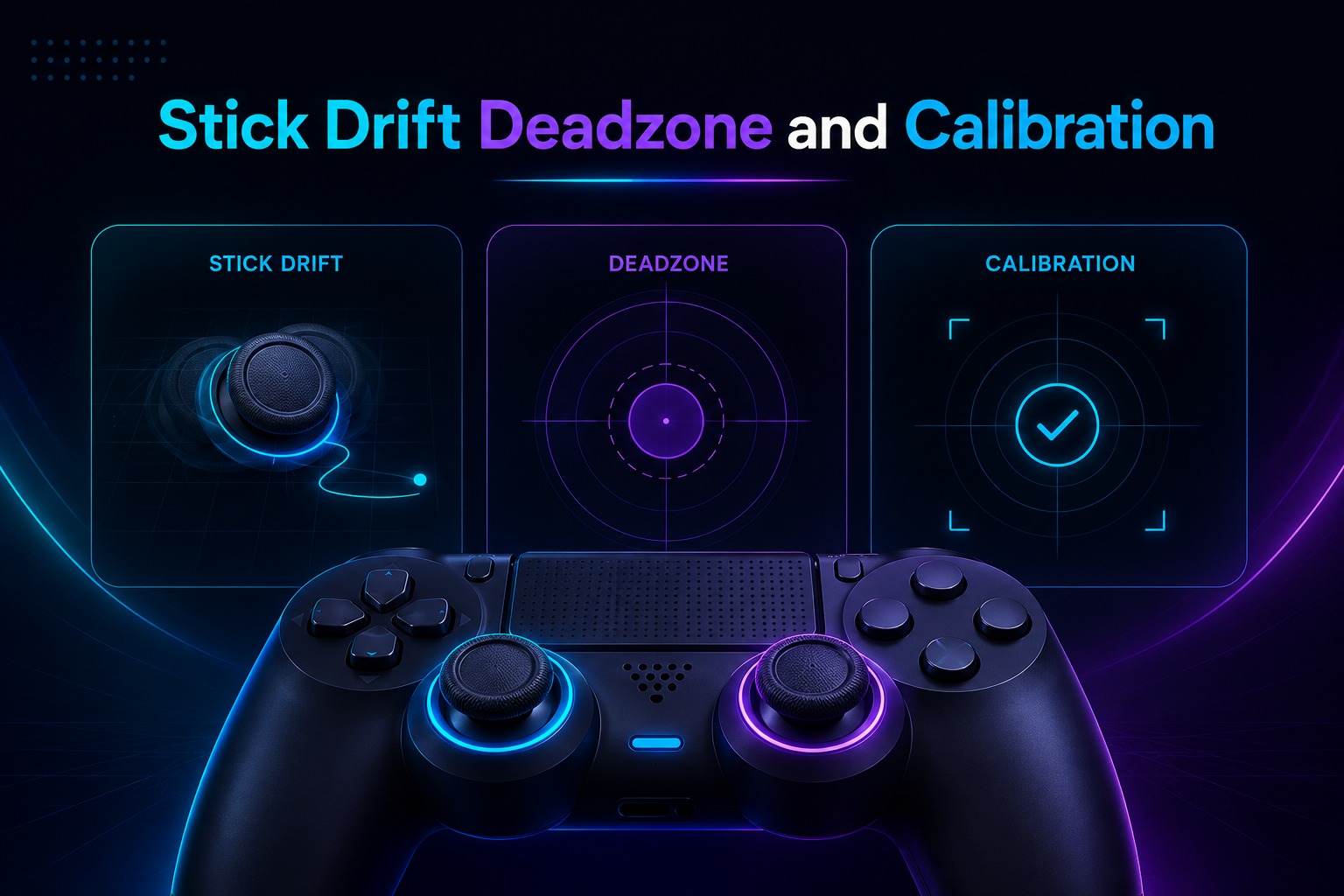
Controller issues are not always caused by broken buttons or connection problems. In many cases the problem comes from the analog sticks. Understanding stick drift deadzones and calibration can help you identify the issue and decide whether it can be fixed through settings or requires a repair.
How to Detect Stick Drift
Stick drift happens when an analog stick registers movement even when you are not touching it. In games this can cause a character camera or cursor to move on its own.
A gamepad tester makes drift easy to spot. Leave the analog stick untouched and watch the on-screen indicator. If the indicator moves without any input there is a good chance the controller is experiencing stick drift.
Common signs of stick drift include:
-
Unwanted character movement
-
Camera movement without input
-
Difficulty aiming accurately
-
Menus scrolling on their own
Understanding Deadzones
A deadzone is a small area around the center of an analog stick where movement is intentionally ignored. This helps prevent tiny unintended inputs from affecting gameplay.
If the deadzone is too small even slight stick movement may trigger an input. If the deadzone is too large the controller may feel less responsive because movement is not detected until the stick is pushed further.
Using a gamepad tester allows you to see how your analog stick responds and whether the deadzone feels balanced for normal use.
When to Calibrate Your Controller
Calibration helps align controller inputs with their expected positions. Over time analog sticks and triggers can become less accurate especially after heavy use.
You may want to calibrate your controller if:
|
Situation |
Why Calibration May Help |
|
Stick movement feels inaccurate |
Resets input positioning |
|
Controller pulls in one direction |
Corrects alignment issues |
|
Triggers respond unevenly |
Improves input accuracy |
|
Inputs feel different after repair |
Restores proper calibration |
Calibration cannot fix every hardware problem but it can often improve accuracy and help determine whether the issue is caused by software settings or physical wear.
Supported Controllers
Most modern gamepad testers work with a wide range of controllers making it easy to check inputs across different gaming platforms. As long as your controller is recognized by your device and browser you can usually test its buttons, trigger sticks and other inputs without installing additional software.
PlayStation Controllers
PlayStation controllers are widely supported by online gamepad testers. This includes DualSense controllers for PS5 as well as DualShock controllers used with PS4 and PS3 systems. Once connected through USB or Bluetooth, you can verify button inputs trigger response stick movement and vibration functions.
Xbox Controllers
Xbox controllers are among the most compatible gamepads for browser-based testing. Xbox Series X|S and Xbox One controllers can be tested to confirm button accuracy trigger sensitivity, analog stick movement and overall controller responsiveness.
Nintendo Controllers
Many gamepad testers also support Nintendo controllers including the Nintendo Switch Pro Controller and compatible third-party alternatives. Testing helps ensure that all inputs respond correctly before starting a game session.
PC and Generic Controllers
USB gamepads, Bluetooth controllers, and many third-party PC controllers can also be tested online. Support may vary depending on the manufacturer and connection method but most standard controllers that are detected by your operating system will work with a browser-based gamepad tester.
|
Controller Type |
Common Support |
|
PS5 DualSense |
Yes |
|
PS4 DualShock 4 |
Yes |
|
PS3 DualShock 3 |
Yes |
|
Xbox Series X/S |
Yes |
|
Xbox One |
Yes |
|
Nintendo Switch Pro |
Yes |
|
Generic USB Controllers |
Yes |
|
Generic Bluetooth Controllers |
Yes |
Besides checking buttons and sticks you can also use our Controller Vibration Test tool make sure both rumble motors are working properly.
Common Controller Problems and Fixes
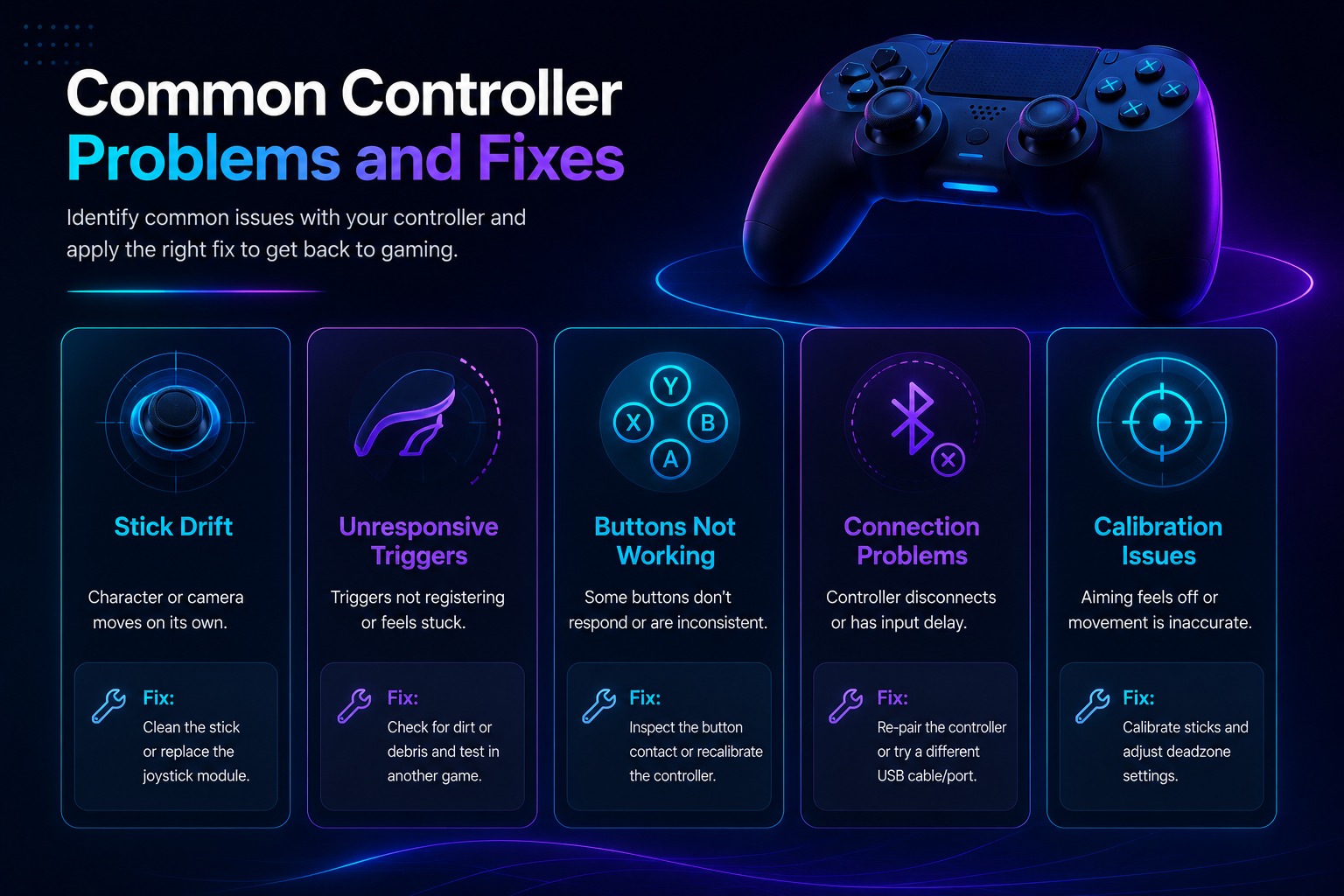
Even a high-quality controller can develop issues over time. Regular use, accidental drops, outdated drivers or connection problems can affect performance. The good news is that many common issues can be identified quickly with a gamepad tester.
Controller Not Detected
If your controller does not appear in the tester, start by checking the connection. Try reconnecting the USB cable, pairing the controller again or using a different USB port. If the issue continues make sure your browser and operating system recognize the controller before opening the tester.
Buttons Not Working
A button that fails to register may be caused by dirt wear or an internal hardware issue. Test each button individually and compare the results. If one button does not respond while the others work normally the problem is usually limited to that specific input.
Connection Issues
Unstable connections can cause delayed inputs or random disconnections during testing. Wired controllers often provide the most reliable connection while Bluetooth controllers may experience issues due to low battery levels, outdated drivers or wireless interference.
Browser Permission Problems
Some browsers may block controller access or fail to detect a connected device properly. Refreshing the page, reconnecting the controller or updating the browser usually resolves the issue. For the best experience use an up-to-date version of Chrome Edge or another browser that supports the Gamepad API.
When Should You Test Your Controller?
Many controller issues develop gradually which makes them difficult to notice at first. Running a quick test can help you identify problems early and avoid frustration during gameplay.
You should consider testing your controller before buying a used device to make sure all buttons triggers and sticks work properly. A test is also useful after cleaning, repairing or updating a controller as it helps confirm that everything is functioning as expected.
If you start noticing delayed inputs, unexpected movement, missed button presses or aiming problems in games testing the controller can help determine whether the issue is caused by the hardware itself.
Competitive players often check their controllers before important gaming sessions because even small input problems can affect performance. Regular testing takes very little time and can help ensure a consistent gaming experience.
Using a Windows PC? Check out our Gamepad Tester PC Test Your Controller on Windows and PC guide for step-by-step instructions to test your controller on your computer.
Frequently Asked Questions
Can I Test a Controller Online?
Yes you can test a controller online using a browser-based gamepad tester. Simply connect your controller and the tool will display its inputs in real time.
Does It Work With Wireless Controllers?
Yes, wireless controllers can be tested if they are properly connected to your device through Bluetooth.
Can I Check Stick Drift Online?
Yes a gamepad tester can help detect stick drift by showing unwanted analog stick movement when the stick is not being touched.
Is Gamepad Tester Safe to Use?
Yes most gamepad testers are safe to use because they work directly in your browser and do not require software installation.
Is the Tool Free to Use?
Most online gamepad testers are free to use and do not require registration or account creation.
Final Thoughts
A gamepad tester online makes it easy to check whether your controller is working properly before problems start affecting your gameplay. From testing buttons and triggers to detecting stick drift and connection issues a quick test can help you identify faults in just a few moments.
Whether you use a PlayStation Xbox Nintendo Switch or PC controller, regular testing can help ensure accurate inputs and a smoother gaming experience. If you notice unusual behavior during gameplay, running a quick controller test is often the fastest way to find the cause.